Manual
Arranged by what you want to do. Menu names follow Studiolo 1.1.67 in English. Prefer not to read? In Studiolo, choose Help › Show Me How and it lights up each thing to click, one step at a time. Some screenshots below show the Chinese interface; the English one has the same layout.
First launch: say what you do
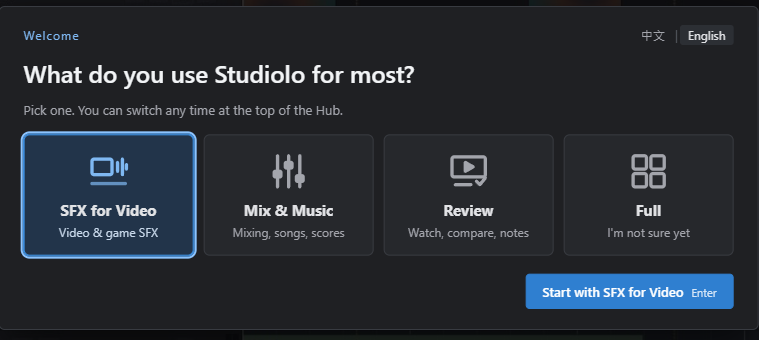
The first time it opens, Studiolo asks "What do you use Studiolo for most?". Pick one of four:
- SFX for Video: sound effects for video and game footage.
- Mix & Music: mixing, songwriting, scores.
- Review: watching, comparing versions, writing notes.
- Full: not sure yet; everything is shown.
Press Enter. You can switch any time at the top of the Hub. The top-right corner of this screen switches between 中文 and English.
Projects and video
- Studiolo opens on the Hub: recent projects on one side, templates on the other. Pick a template and press Create.
- For another new project later: File › New Project… (it brings back the Hub).
- Add video: drag the video file in, or choose File › Import › Video File….
- Add audio: File › Import › Audio File…, or drag it in.
Point it at your sound library
The AI needs to know where to look for sounds.
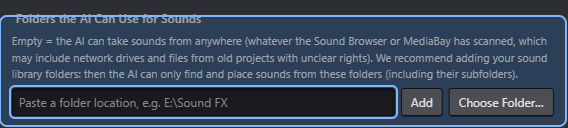
- Click AI at the top right to open the AI panel, then the gear for AI Settings.
- Find "Folders the AI Can Use for Sounds". Paste your sound effects folder and press Add, or press Choose Folder….
- Add as many folders as you like; subfolders count.
Once added, the AI finds and places sounds only from these folders. Left empty, it may take sounds from anywhere the Sound Browser has scanned, including network drives and old project files whose rights are unclear, so we recommend adding yours.
Connect an AI
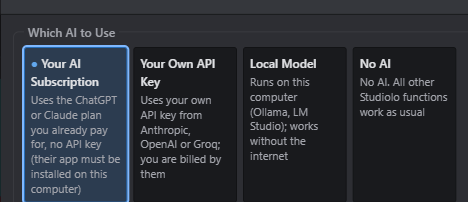
Still in AI Settings, under "Which AI to Use", pick one:
- Your AI Subscription: an AI plan you already pay for, no API key; its app must be installed on this computer (for example Codex). If it is not installed yet, Studiolo can install it for you; then sign in in your browser.
- Your Own API Key: a key you got yourself; you are billed by that company.
- Local Model: runs on this computer and works without the internet.
- No AI: everything else works as usual.
Press Test Connection to make sure it is reachable.
Auto Sound Effects
- Window › Auto Sound Effects…
- Drag the video in.
- The sound folder is the same setting as "Folders the AI Can Use for Sounds" above; sounds come only from there.
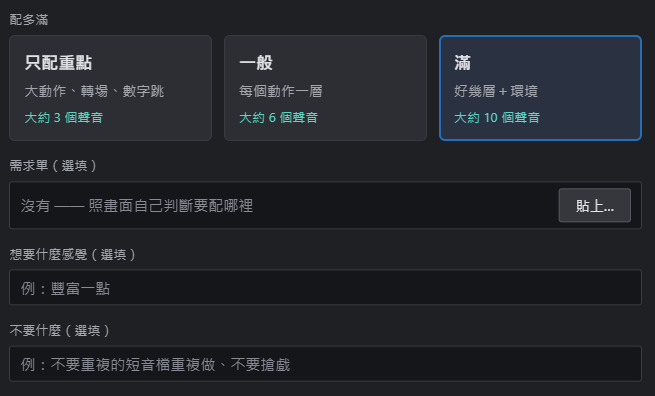
- Choose how full: key moments (big actions, transitions, number counts; about 3 sounds), normal (one layer per action; about 6), or full (several layers plus ambience; about 10). The counts are the guide shown on screen.
- Paste a requirement sheet if you have one; otherwise the AI decides from the picture.
- Add a line on the feel you want and what to avoid, for example "richer" or "don't steal the scene".
- Press Enter to start.
The AI then reads the picture and lists the sounds it needs; searches your library; places each sound, lines it up to the first frame, trims, fades and tidies the tracks; sets loudness on the master only; checks its own work and notes where it is unsure; and renders a draft.
With the export option ticked, you get one WAV and MP3 of the whole piece plus a preview video. With "go straight to Review" ticked, it takes you to Review when it is done.
Review and swap sounds
- Window › Review…
- One row per section. Click a row to play from one second before it to its end.
- Press Enter to tick it.
- Ticked sections export in one go as WAV, MP3 and a preview video.
When a sound is wrong:
- Select it and press Y: it cycles through the takes already placed, then searches the library for alternatives that fit the picture.
- Alt+Y: searches the whole library for something that sounds like the original.
- Shift+Y: back to the previous one.
Each change plays from half a second before. Stop on the one you like. In the menus: Edit › More › Alternatives.
Export
- Set the range first: select an event and press P to set the locators, or drag a range on the ruler.
- File › Export › Audio Mixdown…
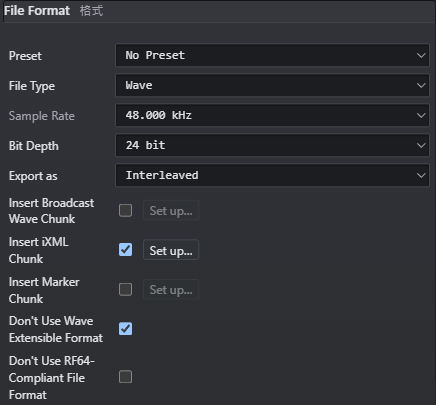
- On the left choose the channels (usually Stereo Out); on the right set the name, folder and format (Wave, sample rate, bit depth).
- Press Export.
The window follows Cubase's Audio Mixdown, so Cubase users should feel at home. To skip the window: File › Export › Quick Audio Export….
Hand off to another DAW
Not ready to switch? Use Studiolo just to place the sounds, export an XML file, and carry on mixing and producing in any DAW.
| You use | In Studiolo | Status |
|---|---|---|
| Cubase | File › Export › Track Archive for Cubase | Tested |
| Premiere | File › Export › Export for Premiere (XML + Stems)… | Testing |
| Other DAWs | File › Export › AAF… or DAWproject… | Testing |
To Cubase: each Studiolo layer becomes a track, plus one video track. In Cubase choose File › Import › Track Archive, pick the xml inside, choose Select All and press OK; everything lands where it was in Studiolo.
We test the other DAWs one by one and list each only once it is tested. To ask about yours, write to contact@studiolo.audio. In Studiolo you can also use Help › Show Me How › Hand Off to Cubase, or Hand Off to Nuendo or Another DAW.
Install extensions
- Workflow packs (.qbworkflow): File › Import › Workflow Pack…, tick what to install, press Install. Studiolo saves a copy first, so you can restore it.
- Skills (guides for the AI): AI Settings › Skill › Add skill…, then choose the folder that has SKILL.md. New skills are checked first and start switched off until you turn them on.
What each kind changes, and how to install it, is on the extensions install page (in Chinese for now).
Still stuck
- Studiolo's Help menu covers common problems: video out of sync, crackles and dropouts, no sound, recorded audio is late, loudness targets for ads.
- Help › Report a Problem… sends a report.
- Or write to contact@studiolo.audio.